

In this guide, you’ll find a list of the best storage drives on the market today, hand-picked by the Videomaker editors. Then, we’ll look at two important factors that need to be considered when purchasing storage of any type.

The Editors’ Choice award recognizes exceptional video production equipment, software and services. These products must help videographers be more effective storytellers while being affordable, easy to use and dependable. The products must also deliver a superior user experience.
Best RAID
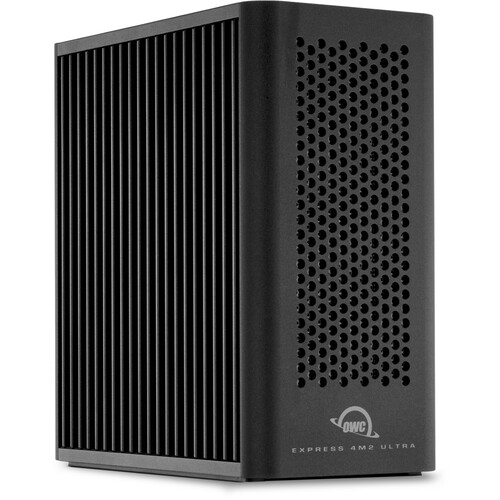
OWC Express 4M2 Ultra
Strengths:
- Up to 6,622 MB/s real-world speeds over Thunderbolt 5
- Expandable to 128 TB through daisy chaining
- SoftRAID Premium included for three years
Weaknesses:
- Tops out at 32 TB in a single unit
- Full speed requires a Thunderbolt 5 machine
The OWC Express 4M2 Ultra is the fastest compact RAID you can buy right now, and it earns that title by moving to NVMe and Thunderbolt 5 while the rest of the category sits on spinning disks. It holds four M.2 SSDs in a footprint smaller than a hardcover book.
Speed is the headline. Connected to a Thunderbolt 5 Mac or PC, the 4M2 Ultra hits up to 6,622 MB/s in real-world use, which is roughly six times what a traditional Thunderbolt 3 hard drive RAID delivers. That’s enough for 12K RAW and 8K multicam sequences without proxies. Older machines still benefit. Thunderbolt 4 and USB4 systems reach 3,200 MB/s, and even a Thunderbolt 3 Mac pulls 2,800 MB/s. One caveat on drive choice: PCIe 3.0 SSDs cap out at 3,800 MB/s, so you need PCIe 4.0 or newer blades to see the top number.
You can buy it two ways. Pre-configured units arrive with SSDs installed and RAID already set up in 4 TB, 8 TB, 16 TB and 32 TB capacities. The bare enclosure lets you install your own NVMe M.2 drives and configure RAID 0, 1, 4, 5, 10 or JBOD through SoftRAID or another utility. Either version ships with a Thunderbolt 5 cable and three years of SoftRAID Premium, which handles predictive health monitoring and alerts you to a failing drive before it takes your project with it.
The tradeoff is capacity. A single 4M2 Ultra maxes at 32 TB, well short of what a four-bay hard drive array holds for the same money. OWC’s answer is daisy chaining, which links multiple units into one volume up to 128 TB, plus a second Thunderbolt 5 port for five more devices. If your priority is raw terabytes per dollar, a hard drive RAID still wins. If you want speed that keeps up with modern codecs in a box you can carry, this is the pick.
Sponsored
SANDISK Extreme PRO CFexpress 4.0 Type B Card
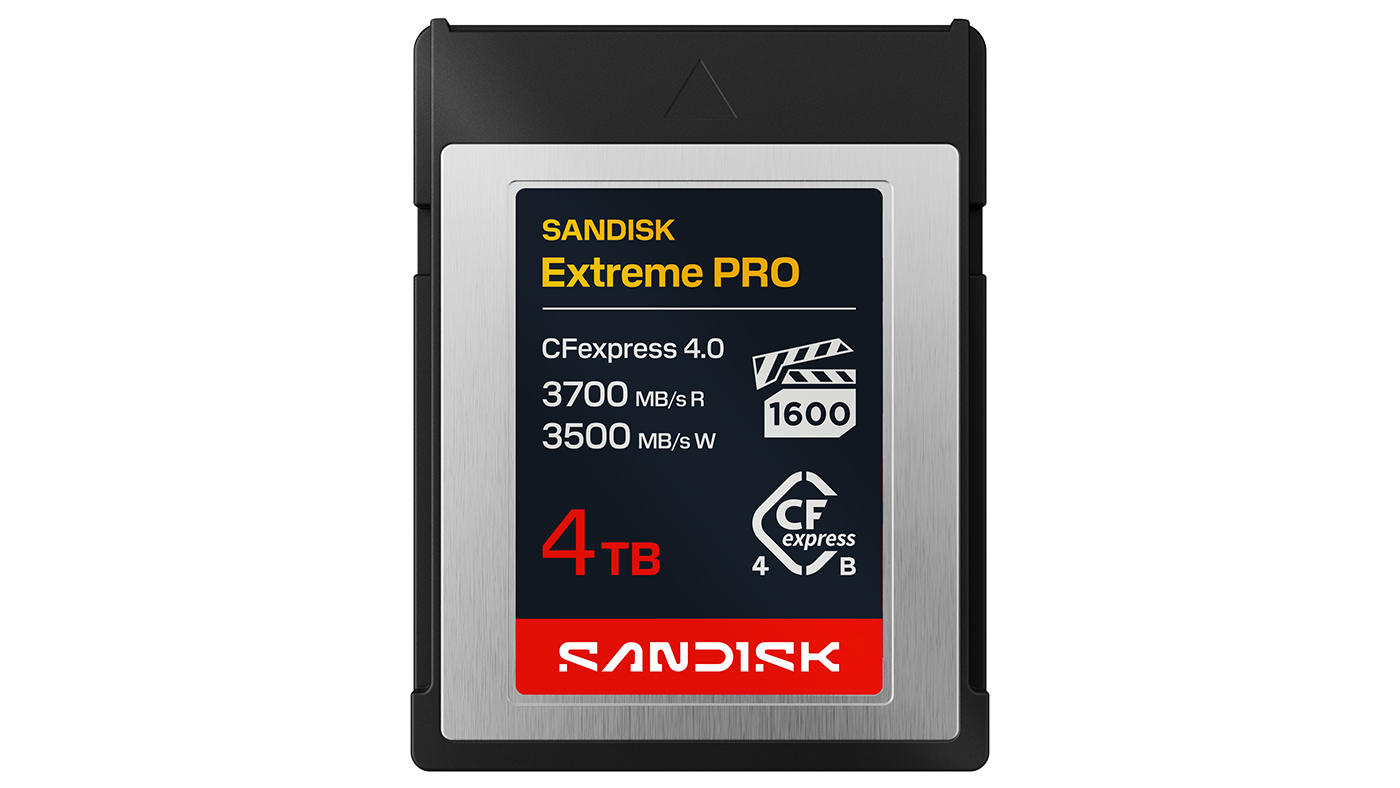
Powered by a PCIe® Gen4 x2 interface, the SANDISK Extreme PRO CFexpress™ 4.0 Type B card delivers read speeds up to 3,700 MB/s1 and write speeds up to 3,500 MB/s1 – performance built to keep pace with modern cinema cameras shooting anywhere from 4K to 12K.6 What sets this product apart is a minimum sustained write performance of 3,100 MB/s1 on the 2TB and 4TB models3, helping prevent dropped frames during long, high-bitrate recording sessions.
With capacities scaling up to 4TB3, it gives professionals room to capture longer takes without swapping media mid-shoot. It’s also built to withstand up to 5-meter drops,5 resist bends up to 70 Newtons,5 and backed by a lifetime limited warranty,7 making it a reliable companion for high-end production environments.
Disclaimers
- Speeds vary by capacity and product. Based on internal testing; performance may be lower depending upon host device, usage conditions, and other factors. 1MB=1,000,000 bytes.
- Based on internal testing on 12K (12288 x 6480) video at 23.98 fps with an average BRAW file size of 84.30GB; performance may be lower depending on host device, interface, usage conditions and other factors. 1MB=1,000,000 bytes.
- 1TB=1,000,000,000,000 bytes. Actual user storage less.
- IEC 60529 IP65: Tested to withstand water flow (30 kPa) at 3 min.; limited dust contact does not interfere with operation. Must be clean and dry before use.
- Based on internal testing.
- Compatible device required. 4K (4096×2160) and 12K (12288 x 6480) video support may vary based upon host device, file attributes, usage conditions and other factors. See www.sandisk.com/HD.
- 30 year warranty in Germany, Canada and other regions not recognizing lifetime warranty. See www.sandisk.com/wug.
- Password protection requires download and installation of the SANDISK app. Password protection uses 256-bit AES encryption. Set up password protection within the app. See www.sandisk.com/passwordprotection for more details.
Best cloud storage
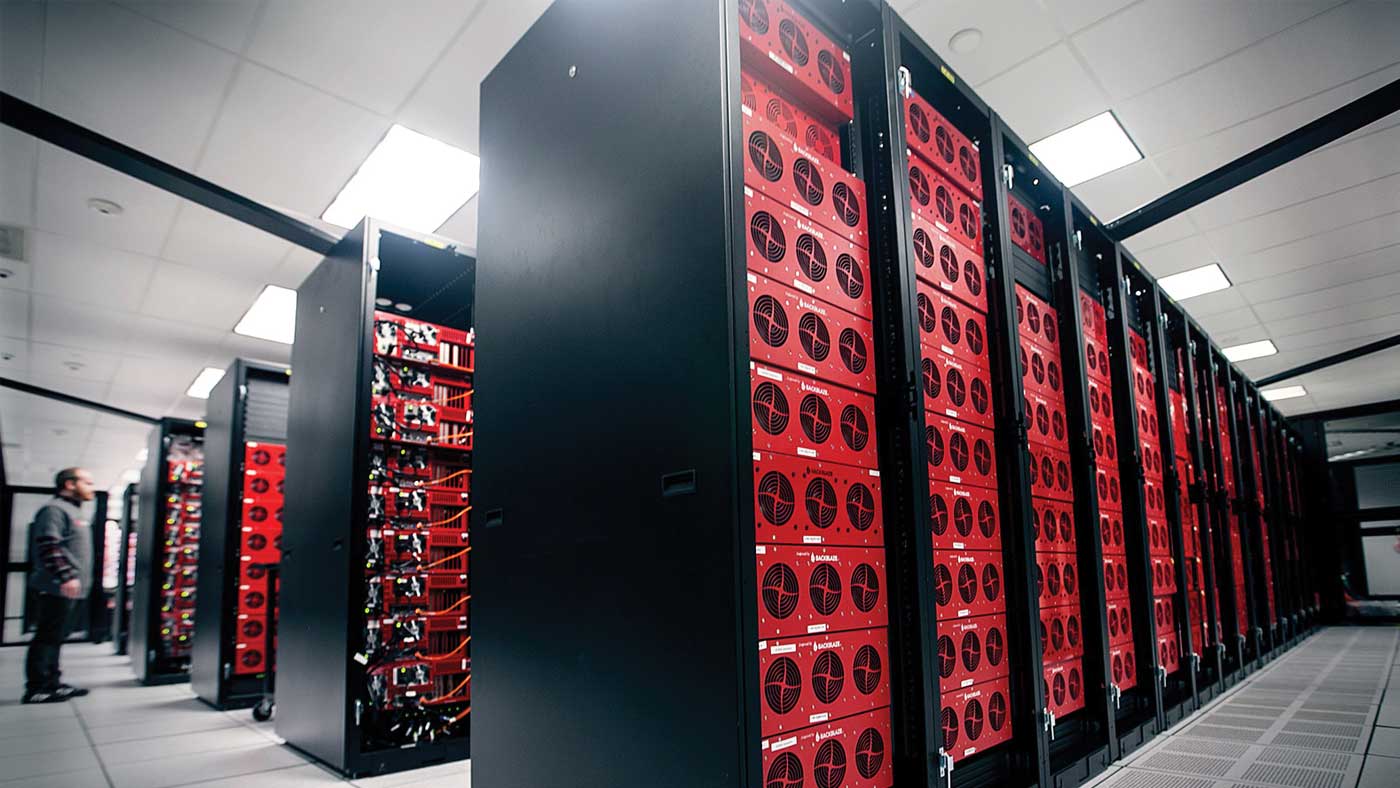
Backblaze
Strengths:
- Unlimited storage
- Simple interface
- Data restore via hard drive option
Weaknesses:
- One computer per license
- Won’t back up NAS or network drives
Backblaze offers unlimited cloud storage and backup for PCs and Macs starting at $9 per month for individuals. Business options are also available. The service automatically backs up and syncs all the files on your system and promises unlimited upload bandwidth. That means your transfer speeds are only limited by your internet connection.
The Backblaze desktop software is simple to use with an uncomplicated control panel that displays the status of your backup. You can set up automatic or scheduled backups with options to restore multiple versions. Every license includes 30 days of version history, and you can add One Year Extended Version History for free. Forever Version History costs $0.006 per gigabyte each month on file versions older than a year.
You can restore an unlimited number of lost files from the cloud for free. Plus, Backblaze will also send you physical drives containing your data for a fee. Stored data is protected with encryption, two-factor authentication, a personal key and the use of native software rather than a Java-based control panel. Data centers are also said to be highly secure and protected from power loss.
One limitation matters for video work. Backblaze backs up drives attached to your computer, not network volumes. If your footage lives on a NAS, look at Backblaze B2 instead, which runs $6 per terabyte each month.
Sponsored
OWC Express 4M2 Ultra
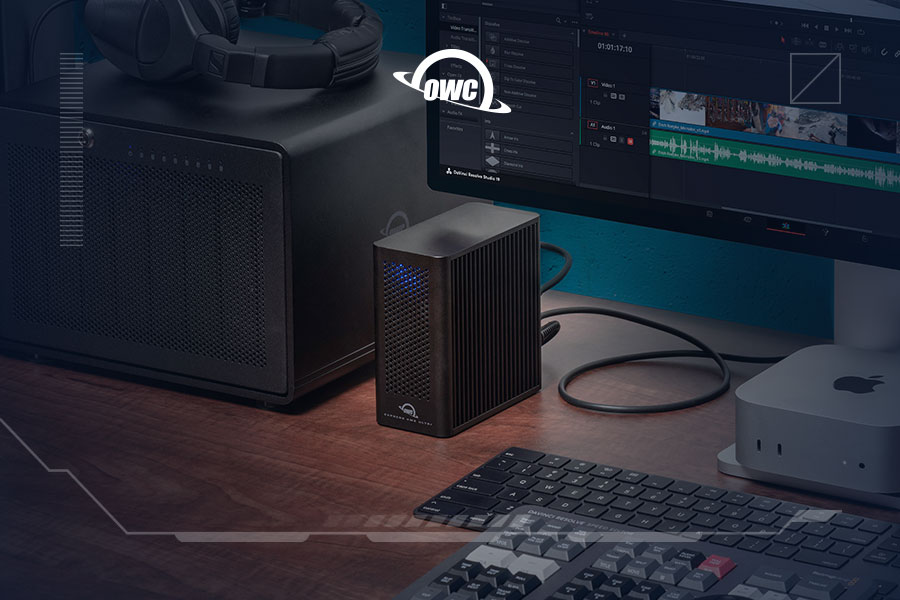
The OWC Express 4M2 Ultra is a compact NVMe RAID enclosure built for video production teams who want speed without limits. Over Thunderbolt 5, it delivers real-world performance up to 6622MB/s, fast enough for 12K RAW video, 8K multi-cam ingest, and demanding VFX work. Whether you prefer configuring your own storage or want a solution ready to go, OWC supports both approaches, with options available up to 32TB to match your workflow.
A second Thunderbolt 5 port adds five more devices plus a USB peripheral, giving you room to connect your full production setup. An adaptive fan and aircraft-grade aluminum housing keep performance quiet and reliable under sustained loads.
Sponsored
SANDISK Extreme PRO Portable SSD
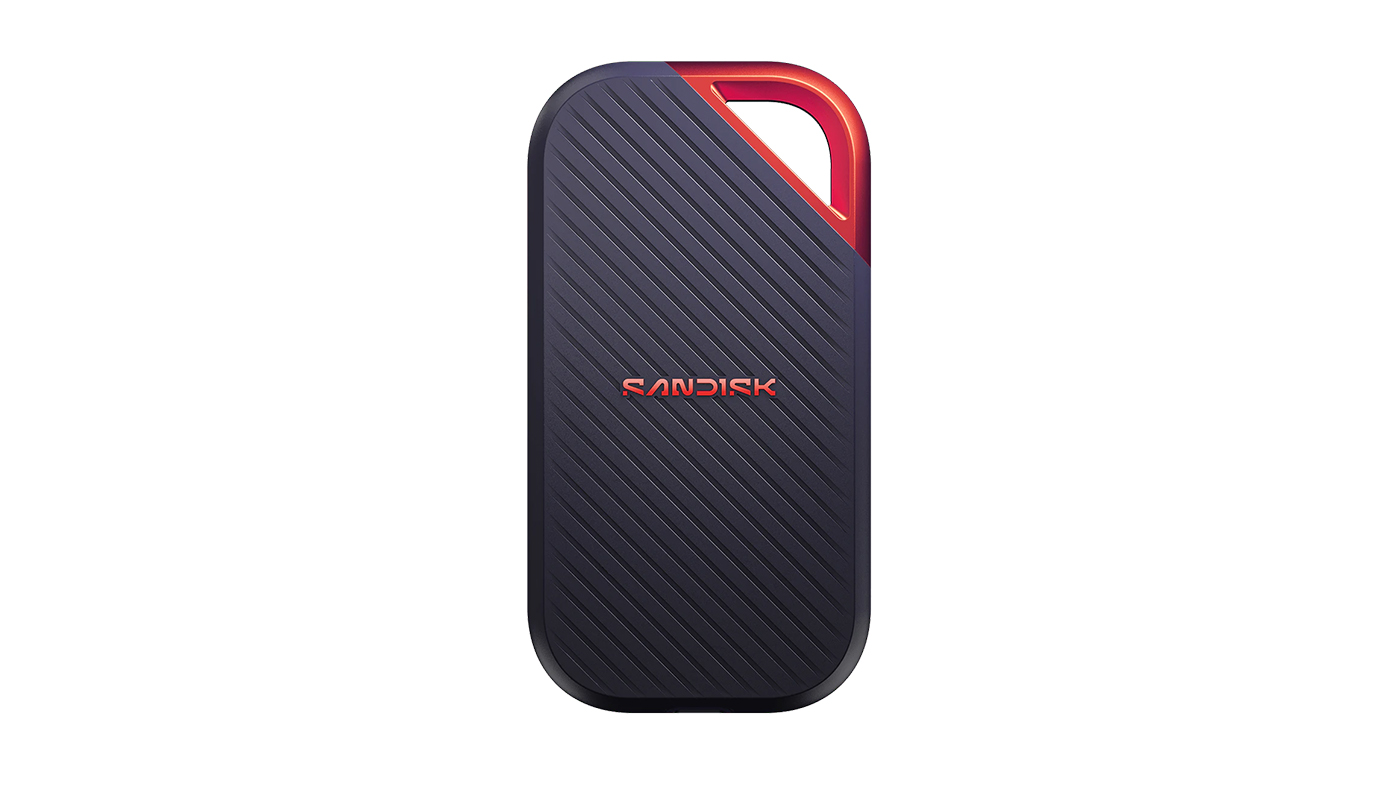
The SANDISK Extreme PRO® Portable SSD delivers transfer speeds of up to 4,000 MB/s1, making short work of high-resolution media. And, with 3100MB/s2 average sustained write speeds, it can help ensure long, high‑volume transfers complete reliably—even under heavy workloads. In fact, the SANDISK Extreme PRO® Portable SSD can move up to 10 minutes of 12K video in just under a minute,2 supporting real-time editing, multi-stream workflows, and rapid offloads in the field. With capacities scaling up to 4TB,3 it gives editors and filmmakers room to keep their entire projects on a single drive.
Beyond raw speed, the drive is built to travel. An IP65 rating4 helps guard against dust and water, and it’s tested to survive drops up to three meters,5 while 256-bit AES hardware encryption8 helps keep sensitive project files locked down.
For demanding creative workflows that can’t slow down between the set and the edit bay, the SANDISK Extreme PRO Portable SSD is a strong pick.
Disclaimers
- Speeds vary by capacity and product. Based on internal testing; performance may be lower depending upon host device, usage conditions, and other factors. 1MB=1,000,000 bytes.
- Based on internal testing on 12K (12288 x 6480) video at 23.98 fps with an average BRAW file size of 84.30GB; performance may be lower depending on host device, interface, usage conditions and other factors. 1MB=1,000,000 bytes.
- 1TB=1,000,000,000,000 bytes. Actual user storage less.
- IEC 60529 IP65: Tested to withstand water flow (30 kPa) at 3 min.; limited dust contact does not interfere with operation. Must be clean and dry before use.
- Based on internal testing.
- Compatible device required. 4K (4096×2160) and 12K (12288 x 6480) video support may vary based upon host device, file attributes, usage conditions and other factors. See www.sandisk.com/HD.
- 30 year warranty in Germany, Canada and other regions not recognizing lifetime warranty. See www.sandisk.com/wug.
- Password protection requires download and installation of the SANDISK app. Password protection uses 256-bit AES encryption. Set up password protection within the app. See www.sandisk.com/passwordprotection for more details.
Network-attached storage
If you are working on multiple computers and you need maximum storage, you might want to consider Network Attached Storage (NAS). These units are different from a simple storage array in that they are designed to be accessed directly through a network. Normally the drives are for storage only and feature a bank of open ports for HDD or SSD. Units can be chained together for massive amounts of storage. NAS is a great solution for back-up or recovery.
It is also possible to configure a NAS to have internet connectivity and it will act as your own personal cloud. You don’t even have to leave your computer powered up to get remote access. If you’re working in a small company with multiple computers, users and projects to archive, then networked attached storage (NAS) may work best for you.
Internal storage
An internal drive is going to give you the speed advertised, but you have to know if your computer can handle a new or additional drive. This includes knowing the type of connection available and the physical drive dimensions that your system will accept. If you don’t have the expertise, you might need to take your computer down to a local repair shop and get some advice. If you’re comfortable with a DIY approach, check out our guide to assembling a PC for information on installing drives. For internal storage, we recommend a large hard disk drive with substantial built-in cache and a higher RPM rating to increase performance.
Portable storage
RAID, NAS and Internal storage solution generally stay put in a single location. However, as workflows become less centralized, you may want to be able to work on your project from home and at the office. You may even want a smaller, rugged solution for travel.
When it comes to portability, an SSD is going to be your best option. With no moving parts, there is no chance of the mechanical failures that would crash a spinning disk hard drive. SSDs are still susceptible to other types of failures, but this difference does make them a better option for portable drives that will be moved around a lot.
Speaking of portability, there are several solutions that are wireless and so you can transfer data directly over Wi-Fi or even remotely with an internet connection back to your home station. You can even find battery powered storage units, so it’s possible to transfer video directly to your hard drive while you’re still in the field or in the car on the trip back. You are no longer limited to the size of your memory cards.
Budget storage
Sometimes, you just need something that works. This is where budget drives come in. They may not have the quality assurance that comes with more expensive drives, but they can still provide adequate capacities and speeds for video editing. If you’re on a budget, compare options based on cost per gigabyte and be prepared to make sacrifices in either read and write speeds or storage capacity. It’s also likely that cheaper drives will have a short lifespan, so make plans to replace your storage drives more frequently.
RAID storage
When you have lots of data to store and protect, and you need to access that data often, a RAID is going to be your best option. RAID stands for Redundant Array of Independent Disks. They usually look like a tower or rack-mounted system. They can offer massive storage capacity, data protection through redundancy and blazing fast read and write speeds — though not necessarily all at once.
Capacity
RAIDs provide these benefits through the use of multiple storage drives configured to work together. That means a RAID needs at least two paired drives to work. However, enclosures can include up to eight or more drives. This means RAID systems can come in higher capacities than are possible with single-drive solutions. As you can imagine, larger capacities come with a larger price tag.
Redundancy
Another benefit of using multiple drives in coordination is that you can configure your system to duplicate data across drives. This provides redundancy. It protects your data so that, if one drive fails, you won’t lose everything. If you want maximum redundancy, configure your RAID in RAID 1. This configuration mirrors your data, storing exactly the same information on two matching drives.
There is one caveat to this, however. With most hardware like this, only the drives have backups — not the system. If the power supply, RAID controller or other hardware on the unit fails, the whole system may be non-functional. In a case like this, the data may still be on the drives, but recovery might be difficult since many RAID controllers write data to drives differently. So while RAIDs are generally safer than non-RAID drives, you should still keep another backup of your data elsewhere.
Speed
In addition to the type of drive, the number of drives can also affect speed. Depending on the setup, RAIDs can process information faster than single drives thanks to their ability to access multiple drives simultaneously. RAID 0 stripes your data across multiple drives. This provides no redundancy and so we don’t really recommend it, but if you need the speed, it is an option. A better choice would be RAID 10. This configuration provides the redundancy of RAID 1 mirroring without sacrificing as much in terms of speed. RAID 10 requires a minimum of four drives, so consider this when shopping for a RAID enclosure.
Other RAID configurations include RAID 5 and 6. These both offer striping and parity for faster speeds along with data protection.
Cloud storage
With all this discussion about data storage, you might be asking if a cloud solution might be a more cost-effective way to go.
The cloud might be just what you need but remember that all servers and plans are not created equally. Make sure you read the fine print. Does the plan have any additional charges related to going over your data limit? How do they ensure file security? Will they offer redundancy and tech support if a file becomes corrupted? If, for some reason, your account becomes delinquent, what happens to your files?
Keep in mind that your transfer speeds are going to be limited by your internet connection speed. That means, while running down to the coffee house to finish up the project over a latte sounds romantic, it may take a very long time to access your footage over the crowded Wi-Fi. Cloud storage may be better suited for archival purposes rather than use as a working drive while editing.
Ultimately cloud storage is a matter of trust. You are trusting that the server company is reliable and secure. You may find yourself wanting a “backup for the backup” — just in case.
Two crucial questions: capacity and speed
No matter what kind of storage you’re shopping for, you’ll inevitably need to answer two crucial questions:
How big does your drive need to be?
The size of the storage is the first question you’ll need to answer while shopping for storage solutions. Data storage is a question of bytes. A megabyte (MB) is about one million bytes. A gigabyte (GB) is about a billion bytes or 1000 MB. And a terabyte (TB) is about a trillion bytes or 1000 GB. Storage today is going to be a matter of hundreds of gigabytes or dozens of terabytes.
Video produces a lot of data. It’s good practice to sit down and calculate how much space your project will take up. The amount of storage your video will require depends on the bit rate at which that video is recorded. This is measured in megabits per second (Mbps) and Gigabits per second (Gbps) or even Megabytes per second (MB/s). The higher the bit rate, the more storage space your video data will require.
How fast does your drive need to be?
The bit rate of your video will also help you determine how fast you need your drive to be. If you want to directly edit video stored on the drive, you’ll want a solution with transfer speeds that exceed the bit rate of your footage. It will also need to meet the minimum requirements of your OS and editing software. Otherwise, you won’t get smooth playback as you edit.
SSD vs. HDD
When shopping for storage, you’ll need to decide between a solid state drive (SSD) and a hard disk drive (HDD). Solid state is also referred to as flash memory. It’s a small chip that contains memory with no moving parts. A hard disk, or spindle drive, has a physical, spinning disc that stores your data. As a rule, SSD drives are faster than hard disks but almost always cost more per gigabyte.
If you go with an HDD, speed will be determined by the drive’s revolutions per minute (RPM). As you would imagine, the higher the RPM, the faster the drive can access and process the data.
Connection type
Internal drives connect to your system via either SATA or PCIe connectors. SATA drives are more common and cost-effective while PCIe drives deliver maximum performance.
If you decide to go with an external drive, the connection type will affect the speed of the data transfer. USB is the most common type of plug for most computers, but not all USB are created equal. USB 2.0 can transfer data at 280 Mbps, while USB 3.0 can transfer data at a whopping 5Gbps. Faster still is a Thunderbolt connection, which has speeds up to 40 Gbps with Thunderbolt 3. You can see that connection is going to make a difference.
Additionally, you can also have a no-connection solution. There are a number of storage options that are completely wireless. Some connect via your local Wi-Fi, and some can generate their own hotspot. That means that you can connect your storage to your device when you are in an area without Wi-Fi. The challenge, as with cables, is that your transfer speed is dependent on your connection speed.
Which storage option is right for you?
Ultimately, choosing the right drive or drives comes down to understanding how the drive will fit into your workflow. You’ll want to look at everywhere your files will go. Make sure you have the storage you need to get your data from image creation through post-production, distribution and archiving. Take stock of your storage requirements to make sure your hardware doesn’t get in the way of your work.

