

Blackmagic Design DaVinci Resolve 21 is a major update, and it pushes Resolve well past video editing. Blackmagic counts hundreds of new features in the final release. The biggest is a Photo page for still images. A large batch of AI tools came with it, along with better editing controls and deeper color workflows. Fusion picks up new graphics tools. Fairlight finally gets a way to organize big sessions.
The base version is still free. It’s also still deep, which makes it one of the best values in creative software.
Resolve 21 becomes a complete creative hub
Plenty of point releases add a few buttons and a faster render option. Resolve 21 is bigger than that. It’s Blackmagic’s clearest statement yet that post-production now covers far more than cutting video. Stills sit next to your footage here. Audio and graphics share the same project, and AI runs through all of it.
That’s been Resolve’s story for years. It started as a color tool, then grew into a real editor. Fusion and Fairlight came later. Version 21 adds the Photo page and a long list of AI features. The Cut and Edit pages get deeper controls, and colorists get workflow upgrades too. Resolve stays free, and Resolve Studio 21 costs $295.
That’s a lot. It’s also the problem. Nobody doubts Resolve 21 has enough tools. The better question is whether those tools help real shooters and editors finish work faster. For the bulk of the update, they do.
What’s new in DaVinci Resolve 21?
The headline feature is the Photo page. At first, it sounds odd. Why would a video editor need a still-photo workspace?
Then you think about how people work. A wedding shooter edits video and stills from the same day. A YouTuber needs thumbnails. Documentary teams want frame grabs for promo, and corporate shooters often deliver event photos alongside the interview edit. The wall between photo and video has been crumbling for years.
The Photo page lets you bring stills into Resolve and manage them there. Albums keep photos at source resolution, and star ratings, tags and flags handle the sorting. Native RAW support covers the major camera formats, including Canon CR3, Fujifilm RAF, Panasonic RW2 and Apple ProRAW. Compressed ARW files from the Sony A7 V and newer bodies work too, and Nikon NEF decoding is improved. The bigger deal is the link to the Color page. Stills get the full color toolset, from primary correction and curves to power windows and the node editor. If you own a DaVinci grading panel, it works here as well, so you can adjust several parameters at once. Photo albums also show up on four other pages (Cut, Edit, Color and Fusion), giving stills a path into the rest of the workflow.
That matters because color is Resolve’s biggest strength. Bringing those tools to stills means a shooter can build one look for a campaign and hold it everywhere, from the hero video down to the thumbnail. That’s a real workflow win.
The other headline is AI. Resolve 21 adds nine new AI tools: IntelliSearch, Speech Generator, CineFocus, Face Age Transformer, Face Reshaper, Blemish Removal, Slate ID, UltraSharpen and Motion Deblur. IntelliSearch analyzes your media so you can search for people, faces, objects or words spoken in dialogue. Speech Generator turns text into spoken audio using Blackmagic voice models or a sample of a real voice. CineFocus shifts the focal point of a shot after capture and adds depth-of-field effects.
Some of these are exciting, and some are practical. A few will make producers nervous, which is normal with AI.
For everyday editors, IntelliSearch is likely the biggest help. Searching media isn’t creative work. It’s the chore you finish before the creative work starts. When you need “the shot with the red truck” or “the clip where the speaker says budget,” the fastest editor is the one who finds it first.
Slate ID is another sleeper. It reads clapperboard details and pulls the slate metadata, even from less-than-perfect clips. On scripted work, that could save an assistant editor a lot of time. It’s not glamorous, but neither is typing scene and take numbers by hand.
UltraSharpen and Motion Deblur will get plenty of use because they go after common problems. Footage comes back a little soft. Motion blur creeps into a fast pan. Neither tool will make bad shooting good, because nothing does. If one saves a key shot, that’s enough. Motion Deblur reduces streaking and softness, while UltraSharpen works on low-resolution or slightly soft footage.
CineFocus is the dream feature. You pick a focal point after the shot, then adjust aperture and focal range. Aperture shape and bokeh are adjustable too, and you can keyframe the whole effect to create a rack focus. For lower-budget productions without a dedicated focus puller, that’s a powerful idea.
Use it carefully, though. A real lens has character and flaws, and it obeys physics. An AI focus effect can help in a pinch, but it shouldn’t become an excuse to get lazy on set.
The face tools are more complicated. Face Age Transformer, Face Reshaper and Blemish Removal handle jobs that used to require high-end VFX work. The age tool can add or remove age-related features. Face Reshaper adjusts facial features on a subject who’s moving through the frame. Blemish Removal cleans up skin imperfections without wiping out texture. Used well, they can help with continuity, beauty work and creative storytelling.
These tools are powerful, and they carry real responsibility. Use them with consent and good taste.
The Photo page changes Resolve’s purpose
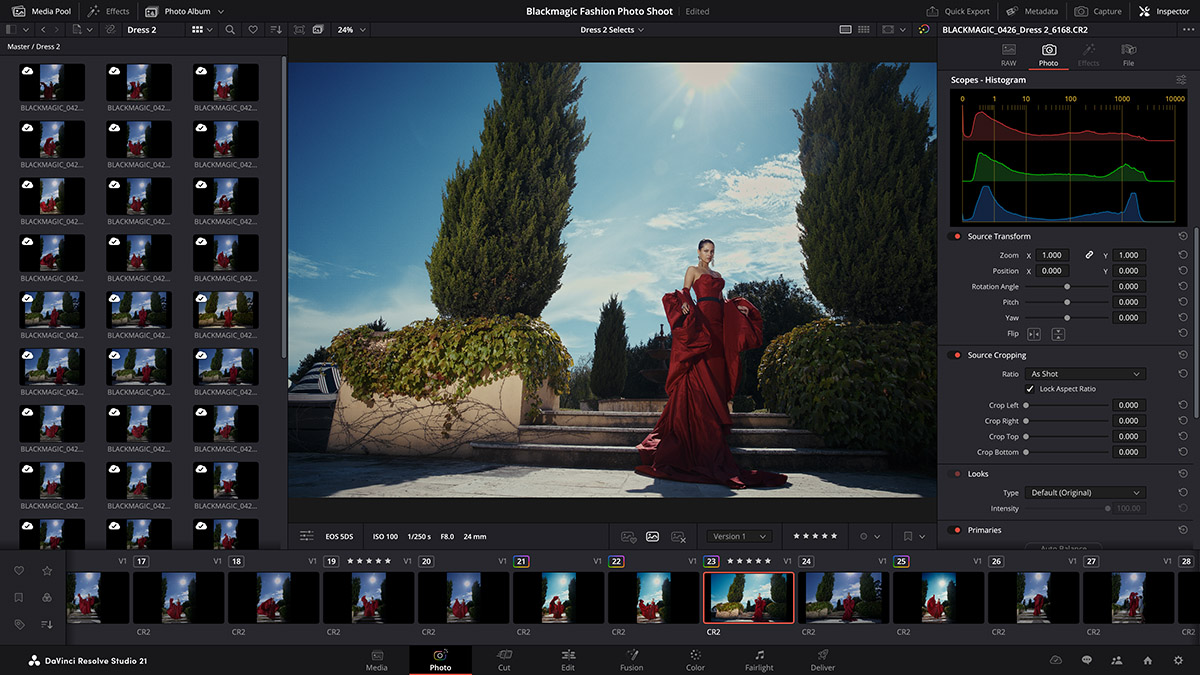
The Photo page is the biggest update in Resolve 21 because it widens what Resolve is. For years, Resolve was a post app for moving images. With stills on board, it’s turning into a creative hub.
That’s smart. Creators rarely deliver one thing now. A single shoot might need a long YouTube video and a vertical teaser, plus a podcast clip. Then come the thumbnail and the event photos. Someone always wants behind-the-scenes stills and social graphics too.
Getting photos in is easy. You can import straight from Apple Photos on macOS or bring a Lightroom catalog file into the media pool. Tethered capture works with Sony and Canon cameras. Looks, LUTs, Resolve FX and OpenFX all work on stills, and so do AI tools like IntelliSearch, Magic Mask and UltraSharpen. Batch exports and conversions are GPU accelerated. Teams can share the work through Resolve’s multi-user collaboration and Blackmagic Cloud syncing.
Lightroom import is the sneaky big one. A photographer can bring an existing library over instead of starting from zero, which makes the Photo page far easier to try.
Cut and Edit page improvements
The Cut and Edit pages get less attention than the Photo page or the AI tools. Even so, these may be the updates editors feel every day.
Keyframing gets a major upgrade. New ease options arrive with loop, ping pong, reverse and stretch modes. Retiming gets 4-point Bezier control, and keyframes and markers now support subframes. You can also keyframe several selected clips at once. Fusion effects, generators and text can be keyframed right alongside edit effects.
That’s a smart move. Motion graphics and edit timing belong together creatively, even when software keeps them apart. The more Resolve lets editors adjust animation without diving into Fusion, the faster title work and client revisions get.
Text tools improve too. Resolve 21 adds spell check for every text element, along with a dedicated font browser. Font previews are available as a preference. Text+ and MultiText now handle emoji and color fonts, and you can style individual characters within a text element. Spell check sounds minor until you misspell a lower third and the client catches it after delivery. Then it’s your whole afternoon.
Smart Bins now work on the Cut page, which makes the fast-editing page more useful on bigger projects. They filter media by rules, such as showing only flagged clips or a specific camera format. It’s not flashy. It’s workflow, and workflow wins deadlines.
Graphics options get wider too. Resolve now reads OGraf HTML graphics and Lottie animations natively, both on the edit pages and in Fusion. A new Picture in Picture effect handles a common job without a trip to Fusion. Multicam work improves as well. Angles can carry all of their audio tracks, and angle previews can go out to the clean feed and video outputs.
Color page updates for pros

Resolve’s Color page was already the reason many people used the program. Version 21 doesn’t reinvent it. Instead, Blackmagic cleaned up some serious workflows.
MultiMaster Trim Manager is a big one for finishing. It generates multiple HDR and SDR trim deliverables from one timeline. Turn it on, and the node editor shows extra layers for trim operations. From there, you manage each output standard and render every version in one pass.
Plenty of YouTubers won’t need it. For anyone finishing broadcast, streaming or commercial work, it matters a lot. Deliverables keep multiplying as platforms and standards pile up, so anything that cuts duplicate work is valuable.
Layer List View in the node editor is another strong addition. Nodes are powerful, but a complex grade can turn into visual spaghetti. Layer List View shows the nodes as rows instead. New users should find grades easier to follow, and experienced colorists get another way to keep a big node tree under control.
Group Color Grade Versions stands out as well. You can now keep multiple grade versions within a group, and each version applies to every clip in that group. For a colorist trying different looks across a scene, it’s a cleaner way to experiment.
Smaller changes round out the page. Node stacks now go up to eight layers, and HDR and nit scope ranges are customizable. Adobe RGB is now a supported colorspace and gamma, a natural fit now that stills live in Resolve.
Magic Mask gets render in place. AI masks are useful but heavy on the processor. Resolve 21 can cache a tracked mask as a traveling matte node, which keeps real-time grading and effects work lighter.
Fusion gets more motion graphics power
Fusion has always been powerful. It has never been as approachable as layer-based motion graphics apps.
Resolve 21 helps by building the Krokodove VFX Library into Fusion. It brings utility, vector and data tools, plus customizable 2D and 3D graphic templates you can use throughout Resolve. Blackmagic says it adds more than 70 new graphics to Fusion, part of more than 100 new motion graphics effects and tools on the page. That’s a good move. Fusion’s depth can scare people off, and templates let them get results before they understand the whole system. People learn faster when they can make something useful on day one.
The updated Macro Editor should help teams build reusable tools. The new version adds an inspector view, and it can publish macros straight to the edit pages as effects. A good macro turns a complicated effect into a repeatable button.
Audio-driven animation is the fun one. The new Fairlight Animator modifier links Fusion to Fairlight’s audio engine, so audio levels from a clip or a Media Pool source can drive animation parameters. Music videos and lyric videos are obvious uses. Podcast clips and animated explainers could benefit too. It also ties together two parts of Resolve that felt more separate than they should.
3D artists get attention too. Fusion now supports USD SDK 25.11 with the Hydra 2.0 API for the Storm renderer, and it can create relief maps natively. Lens Distort adds checkerboard calibration and GPU acceleration.
Fairlight folders are simple and necessary
Fairlight has grown into a serious audio environment, but big timelines still get messy. Resolve 21 adds folders for audio tracks. Group tracks into a folder and collapse it into one composite view. Expand it, and the individual tracks come back.
This should have existed already. That doesn’t make it less welcome. Dialogue, music and effects tracks pile up fast once you add room tone, Foley, stems and alternates. Before long, the timeline looks like a parking lot. Folders bring order.
Clip EQ moves up to six bands on the Cut, Edit and Fairlight pages. That’s more tonal control at the clip level. It’s also easier to copy and paste settings between clips, tracks and the EQ plug-in. Not every clip needs a full mix pass. Sometimes you need to tame a voice or clean up a boom track right on the timeline.
Smaller upgrades worth knowing
Blackmagic’s full list runs long, and plenty of the smaller items will save real time. Preferences and project settings are now searchable, which should end a lot of menu hunting. The Media Pool picks up tabbed layouts and star ratings for clips. You can also export a bin’s thumbnails as a PDF for a client review or a shot list.
Moving projects around gets easier. Resolve now imports and exports Final Cut Pro 12 FCPXML. Timeline backup snapshots let you compare versions of a cut, and file sync to Blackmagic Cloud is up to 3x faster.
Codec support grows as well. HEIC, JPEG, PNG and TIFF gain HDR decode and encode, with HEIC export on both macOS and Windows. Broadcast shops get better MXF growing-file support. Insta360 I-Log is now part of color management. Sony Burano V3 clips are supported, and Intel QuickSync can decode and encode AV1 4:4:4.
Price and learning curve
Resolve remains one of the best values in post-production. The free version is a real editor, not a toy. Resolve Studio 21 costs $295, and owners of an earlier Studio license upgrade free. In a market full of subscriptions, that one-time price is a major advantage.
The catch hasn’t changed. Resolve is big, so the learning curve is real. New editors can cut on the Cut page quickly. Getting the full value means learning nodes and the page system, along with media management and delivery settings. You’ll also need to understand where basic editing ends and finishing begins. That’s the cost of power, and it’s a fair trade.
The good news is that Resolve’s page-based design still makes sense. Media, Cut, Edit, Fusion, Color, Fairlight and Deliver each have a clear job. The Photo page fits right into that structure instead of feeling bolted on.
What comes in Studio?
Not every user needs Studio, but plenty of serious users will. The free version is still remarkable for editing and basic grading. Studio is where many of the higher-end tools live. That includes the new AI tools such as CineFocus, UltraSharpen, Motion Deblur, Slate ID and the face tools, plus tethered capture on the Photo page. Studio also adds more Resolve FX and Fairlight FX, along with stereoscopic tools and advanced HDR grading.
Keep that in mind when reading the feature list above. A good chunk of the headline AI work requires the paid version.
For professionals billing clients, the upgrade makes sense. If the AI tools save hours on masks, sharpening or finishing, Studio pays for itself quickly. Students and hobbyists can stick with the free version. It remains one of the best ways to learn professional post without paying before you’re ready.
Where Resolve 21 fits
Resolve 21 puts even more pressure on every smaller editor on the market. Blackmagic isn’t trying to build an editor anymore. It wants to be the whole post house.
That’s Blackmagic’s advantage. The company sells cameras and switchers, plus recorders and control panels. Resolve ties much of that hardware together. The software can be free because it supports a bigger hardware business. That was true years ago, and it’s even more true now.
Resolve 21 is strongest for people who want one app to carry a project from ingest to delivery. Colorists and finishing artists will feel at home. So will YouTubers, hybrid shooters, small production companies and schools that teach post. The Photo page also makes it more appealing to photographers and to video creators who deliver more than video.
It’s less ideal if you want the simplest editor possible. Resolve can be simple, but it isn’t small. If all you need is to trim a few clips and post a quick video, faster tools exist. If you want room to grow, Resolve gives you a long runway.
Final thoughts
DaVinci Resolve 21 is one of the more meaningful Resolve updates in years because it changes the shape of the program. The Photo page pushes Resolve into still images. The AI tools take on real production problems, from finding a clip to fixing soft footage to reading a slate.
Elsewhere, editors get better animation and text tools on the Cut and Edit pages, plus native OGraf and Lottie graphics. Colorists get stronger finishing tools. Fusion gains graphics power, and Fairlight finally gets folders and a better clip EQ.
Not every feature is for every user, and that’s fine. Resolve has grown from one tool for one job into a full production environment.
If we had to rank them, the Photo page is the biggest change. IntelliSearch is likely the everyday hero, and MultiMaster Trim Manager may be the pro favorite. Fairlight folders were overdue. The riskiest additions, if misused, are Speech Generator and the face-altering tools. Power is good, but responsibility still matters.
Resolve 21 isn’t perfect. It’s still a serious step forward, with more tools and more speed. It also gives creators more reasons to stay in one app from the first import to the final export.
For free, it’s hard to beat. At $295, Studio is one of the strongest values in professional post.
Strengths
- The Photo page brings still images into the Resolve pipeline
- Native RAW support and Lightroom catalog import for stills
- AI IntelliSearch can save real time on big projects
- CineFocus, UltraSharpen and Motion Deblur give editors more ways to rescue a shot
- Layer List View makes complex grades easier to manage
- Krokodove adds useful motion graphics tools to Fusion
- Fairlight folders clean up large audio sessions
- Studio is still a one-time $295, with free upgrades for current owners
Weaknesses
- The Photo page won’t replace a dedicated photo app for everyone
- Many of the new AI tools require Studio
- Several of the best features mainly matter to advanced users
- The learning curve is steep for new editors
Tech specs
| Product | DaVinci Resolve 21 and DaVinci Resolve Studio 21 |
| Developer | Blackmagic Design |
| Current version | 21.1.1 (updated Oct. 1, 2026) |
| Price | Free; Resolve Studio 21 $295 one-time Free upgrade for owners of an earlier Studio license |
| Platforms | macOS, Windows, Windows on Arm and Linux |
| macOS requirements | macOS 15 Sequoia or later on Apple silicon 8 GB RAM (16 GB with Fusion) 16 GB RAM for advanced AI tools 32 GB RAM for background rendering and analysis |
| Windows requirements | Windows 10 Creators Update 16 GB RAM (32 GB with Fusion) Integrated GPU or discrete GPU with at least 4 GB VRAM GPU support for OpenCL 1.2 or CUDA 12.8 16 GB VRAM for advanced AI tools NVIDIA Studio driver 581.57 or newer |
| Windows on Arm requirements | Windows 11 for Arm Qualcomm Snapdragon X Elite or NVIDIA RTX Spark 16 GB RAM (32 GB for 4K or Fusion) |
| Linux requirements | Rocky Linux 8.6 32 GB RAM Discrete GPU with at least 4 GB VRAM GPU support for OpenCL 1.2 or CUDA 12.8 16 GB VRAM for advanced AI tools |
| Pages | Media, Cut, Edit, Fusion, Color, Fairlight, Deliver and the new Photo page |
| New AI tools | IntelliSearch, Speech Generator, CineFocus, Face Age Transformer, Face Reshaper, Blemish Removal, Slate ID, UltraSharpen and Motion Deblur |
| Studio-only features | CineFocus, UltraSharpen, Motion Deblur, Slate ID and the face tools Tethered capture on the Photo page Stereoscopic tools Additional Resolve FX and Fairlight FX Advanced HDR grading |
| Photo RAW support | Canon CR3, Fujifilm RAF, Panasonic RW2 and Apple ProRAW Compressed Sony ARW (A7 V and newer) Improved Nikon NEF |
| Photo import | Apple Photos (macOS) and Lightroom catalog files |
| Tethered capture | Sony and Canon cameras (Studio) |
| Interchange | Final Cut Pro 12 FCPXML import and export DRT timeline import with link and conform options Affinity .af files with layer control |
| Graphics formats | OGraf HTML graphics and Lottie animations |
| Collaboration | Multi-user projects and Blackmagic Cloud syncing |
| Control panels | DaVinci Speed Editor, Editor Keyboard, Replay Editor, Micro Color Panel, Micro Panel, Mini Panel and Advanced Panel Fairlight Desktop Console and Fairlight Desktop Audio Editor |
| Project compatibility | Projects opened in 21.1.1 can’t be opened in 20.3.2 |
| Recommended uses | Narrative and documentary filmmaking Corporate and commercial production YouTube and social media content Wedding and event production Hybrid photo and video workflows |

