

Adobe has released a new version of Photoshop with AI-powered editing tools. Photoshop 28.0 lets you add light sources with Relight and fine-tune images with Generative Restyle.
Creative lighting effects
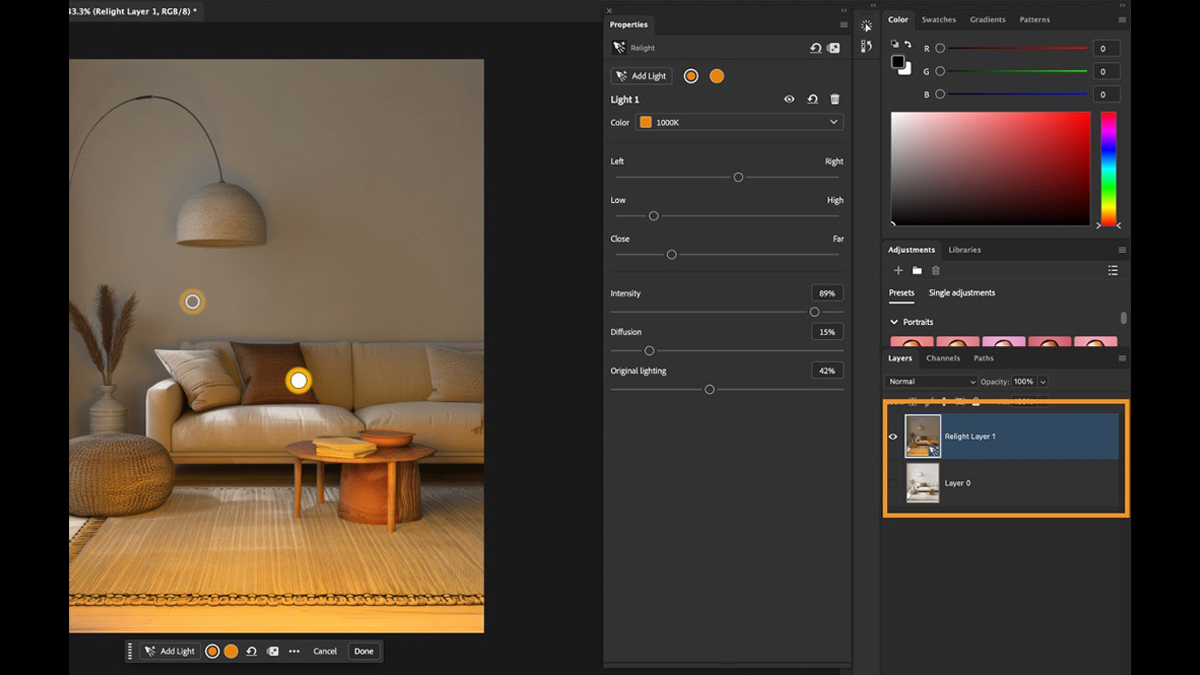
Relight is the headline feature in Photoshop 28.0. Use it to add dramatic lighting to an image. You can place up to three light sources, then adjust position, color, intensity and diffusion right on the canvas. Relight detects the existing light sources in your image and feeds them into the generative AI that builds the new lighting.
One catch: Relight only changes the active layer. Apply it to the top layer of a composite and only that layer is affected.
Using Relight
Select a layer, then choose New Relight layer from the Layer panel menu. Photoshop adds one light source to your image. The Properties panel lets you pick a color temperature from 100K to 10,000K or enter a custom value.
Three sliders set the light position in X, Y and Z space. One moves the light left or right and another moves it up or down. You can also drag the light with your mouse. The third slider moves it closer or farther away, so you can place the virtual light in front of objects or even behind them.


Low-res preview
While you adjust lights, Photoshop shows a low-resolution preview that mostly updates in real time. Click Done when you like the result and Relight uses generative AI to apply the effect. That needs an internet connection and costs 30 generative credits.
To change a Relight layer later, select it in the Layers panel and choose Edit Lighting from the Properties panel. Hit Done again to regenerate the image. Every regeneration costs another 30 credits.
Generative Restyle
Generative Restyle changes the look of an image with generative AI. Select your image, choose Prompt to Edit, describe the changes you want and hit generate. When the edited image appears on your canvas, pick Generative Restyle from the Contextual Task Bar. That converts the AI image into a Generative Restyle layer and costs 80 credits.
A slider in the Properties panel or the Contextual Task Bar controls the intensity of the effect. When you are happy, save the result as a layer or export it as a video.
What we think
Adobe keeps weaving generative AI into its Creative Cloud programs. Relight can add impressive, realistic lighting effects to your images. Capturing the look in camera is still better, but Relight lets you experiment with new looks in post. You can keep editing the lights to refine the image, although each pass uses generative credits.
Generative Restyle lets you refine AI-generated changes made with Prompt to Edit. Generative AI remains a contentious subject. If you are comfortable with it, the new tools can deliver impressive results.
Availability
Relight and Generative Restyle are available in Photoshop 28.0. You need an active subscription to the app or to Adobe’s full Creative Cloud suite. You also need enough generative credits to pay for your edits.


