

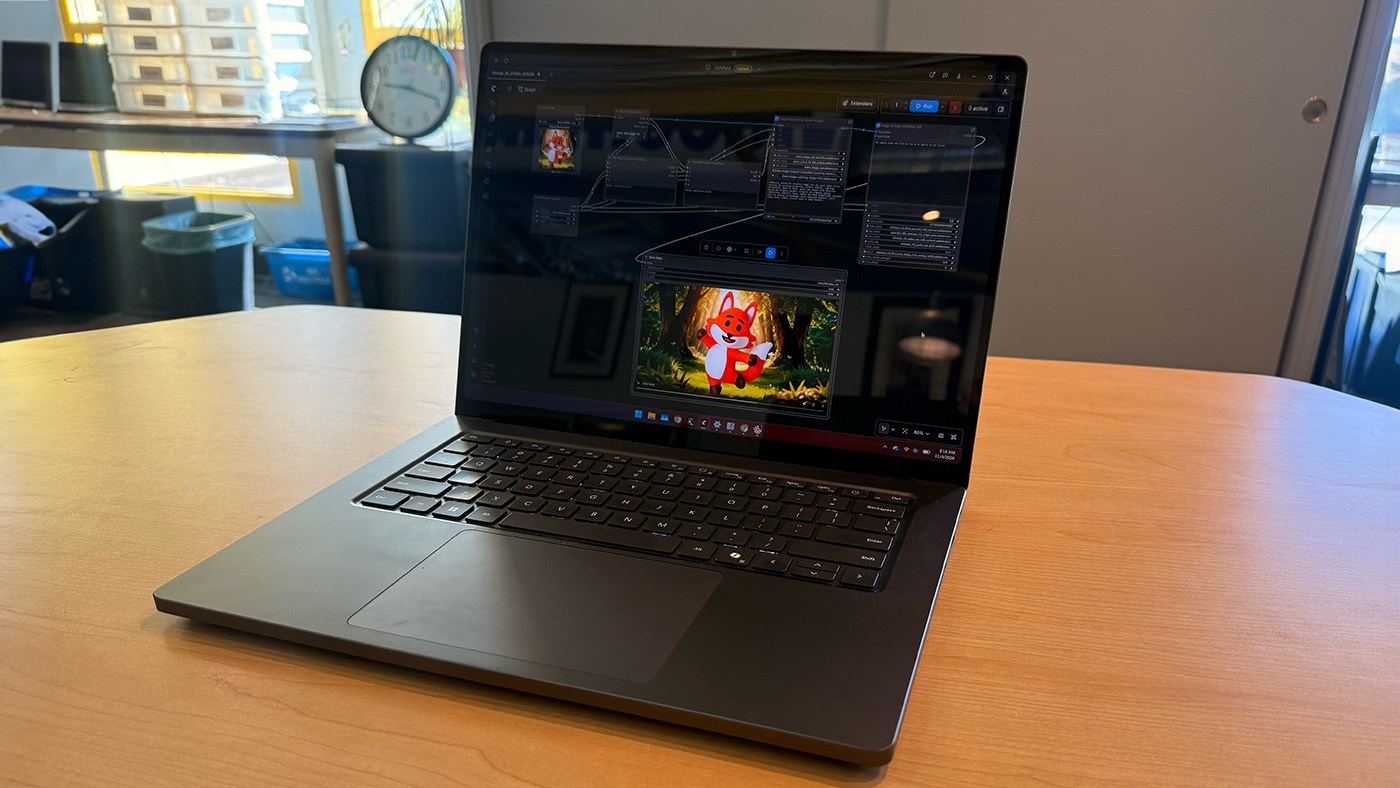
Microsoft’s Surface Laptop Ultra packs 128 GB of unified memory into a $5,900 laptop. We put local AI to work to see whether video editors actually need it.
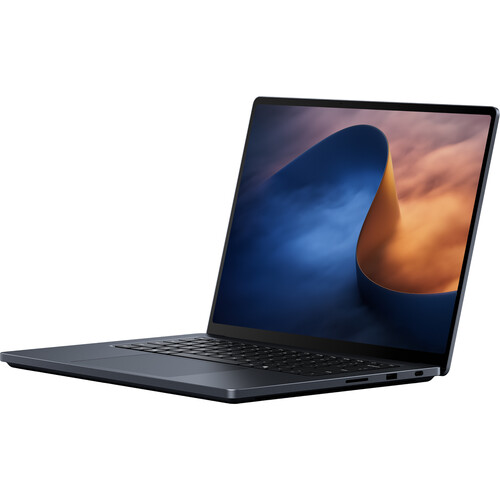
The Microsoft Surface Laptop Ultra is an unusual computer. Our review unit has a 20-core NVIDIA processor, a GPU with 6,144 CUDA cores and 128 GB of unified memory. At $5,900, it costs far more than the laptops most people use for video editing.
The reason for all that memory is AI. A large pool accessible to the CPU and GPU lets the Surface run models that would exceed the video memory in many conventional laptops. That opens the door to running language models locally, generating images and video, and automating production tasks.
The possibilities are appealing. An AI assistant could search hours of footage for usable interview takes, organize media, find B-roll or help assemble a rough cut. Editors could generate visual assets and process footage without paying a cloud provider for each operation.
During a presentation showcasing its RTX chips, NVIDIA suggested local AI could save about $1,200 per month in cloud inference costs, assuming the computer generated tokens around the clock.
That claim raises a practical question. Is there enough useful work for local AI to justify spending nearly $6,000 on a laptop?
To find out, we ran local language models, generated images and video, built a footage-indexing workflow and compared it with the AI features in Adobe Premiere Pro and DaVinci Resolve.
We found impressive capabilities, frustrating limitations and a few surprises about where local AI offers the greatest value.
What you get for $5,900

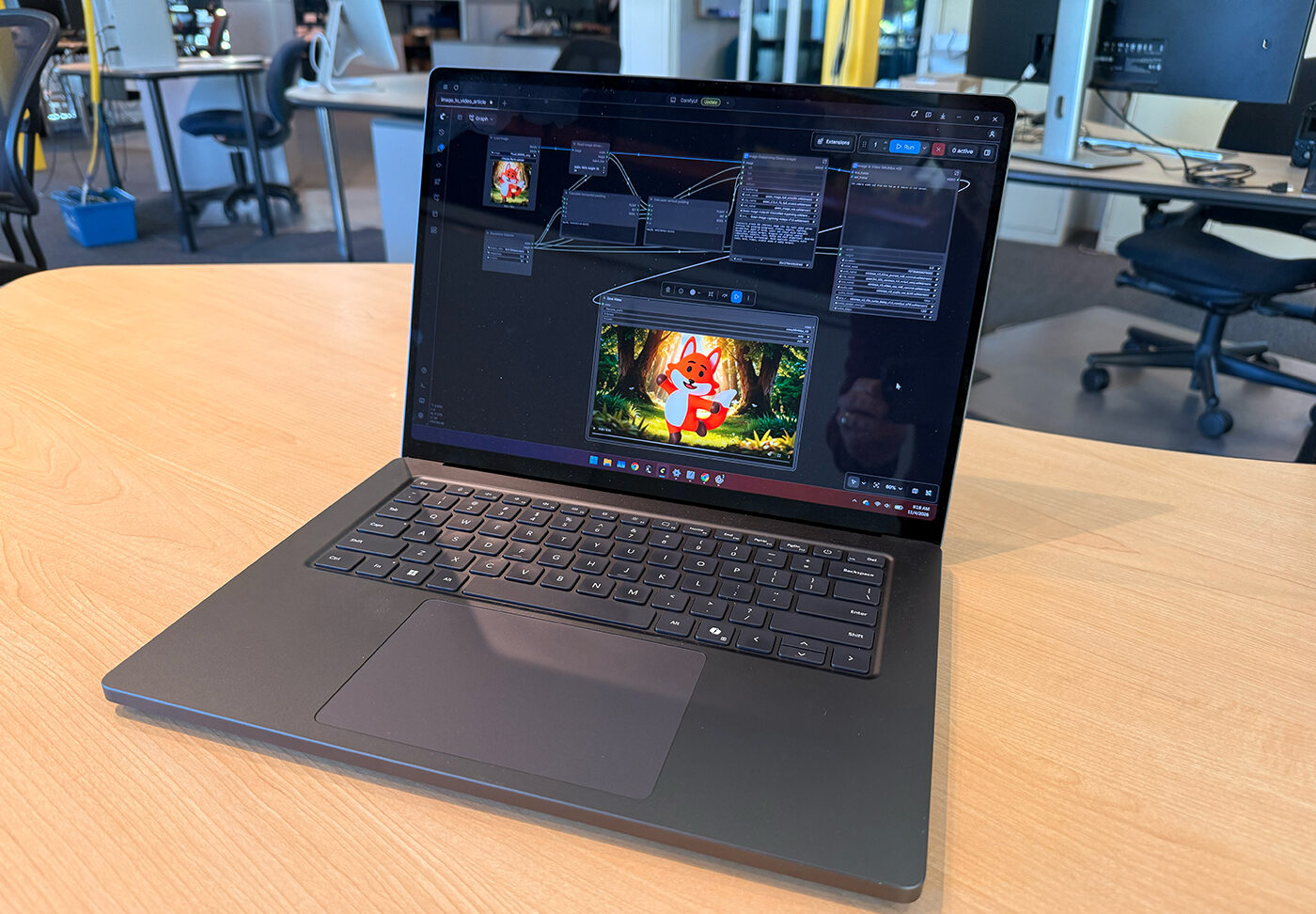
The Surface Laptop Ultra uses NVIDIA’s RTX Spark N1X processor. Our configuration has a 20-core Arm CPU, a Blackwell GPU with 6,144 CUDA cores, a 1TB SSD and a 15-inch touchscreen with a resolution of 3270 × 2180.
Its defining spec is 128 GB of LPDDR5X unified memory.
In a conventional laptop with a discrete GPU, system memory and GPU memory are separate. A machine might have 32 GB or 64 GB of system RAM plus 8 GB, 12 GB or 16 GB of dedicated video memory.
Large AI models need substantial GPU-accessible memory, particularly at higher numerical precision or with long context windows. Unified memory gives the CPU and GPU a common pool, so the system can accommodate models that might not fit in a typical laptop GPU’s dedicated memory.
Microsoft offers several configurations. These were the listed prices for models with the same 20-core CPU and 6,144-core GPU as our review unit:
| Unified memory | Price |
| 32 GB | $3,700 |
| 64 GB | $4,300 |
| 128 GB | $5,900 |
The 128 GB model costs $2,200 more than the 32 GB model and $1,600 more than the 64 GB version.
That premium buys capacity. Memory lets you run larger models or keep more of them loaded at once. It doesn’t necessarily make a workload faster if the work already fits comfortably in a smaller configuration.
Is it a good video-editing laptop?
In everyday use, the Surface feels like a capable, high-performance laptop. It’s fast and responsive, with the kind of incremental improvement we’ve come to expect from a new generation of premium hardware.
Independent benchmarks back up that impression, though results vary considerably by application and workload.
Tom’s Hardware tested a 32 GB configuration and recorded a Geekbench 6 multi-core score of 20,203. In its 4K-to-1080p HandBrake transcoding test, the Surface finished first, beating an M5 Max MacBook Pro by one second.
Notebookcheck recorded 1,682 points in Cinebench 2024 multi-core and found the processor maintained consistent performance under sustained load.
StorageReview measured 41.7 frames per second in a software-based 4K60 HEVC encoding test, about 25% ahead of its comparison group. Its AV1 result was 15.4 fps, roughly one-fifth the performance of competing x64 systems. The contrast shows how much software optimization can matter on Windows on Arm.
We also ran a practical export test in Premiere Pro Beta. We assembled five 720p clips into a 30-second montage, applied a simple color grade and sharpening, then upscaled the sequence to 4K to increase the processing workload.
Using NVIDIA’s hardware-accelerated H.264 encoder, the Surface exported the sequence in approximately 9.6 seconds, about 3.1 times faster than real time. Overall GPU utilization averaged 40% and peaked at 53%, while the dedicated video encoder reached 96% utilization. The laptop had plenty of headroom in this case.
That’s an encouraging result for a straightforward workflow, and the dedicated encoder did much of the work. The project was also relatively light. The source footage was 720p and the effects were simple. Upscaling raised the processing load but couldn’t add detail to the original footage.
What makes this laptop unusual is its ability to run large AI models locally. That’s where we concentrated our testing.
Can a local AI assistant help you edit?
One possibility we wanted to explore was computer use, which means giving an AI assistant control of software through the mouse and keyboard.
An editor could ask an assistant to find elusive settings in Premiere or handle a repetitive task inside an existing project. In practice, the local models we tested struggled.
We got computer use working, but the AI often got stuck or needed substantial human help. ChatGPT, given the same tasks, completed them successfully, often on the first try.
That matters to the economics of local AI. Computer use could be valuable to an editor, but in our testing, a cloud model delivered a noticeably better experience.
We saw a distinction, however, between navigating software and executing an established technical workflow. Later, we used a local agent called Hermes to run our custom footage-indexing pipeline. It invoked the installed system, completed the operation and saved the results without help.
That was a narrower task than navigating Premiere or making creative decisions. It showed that a local agent can be useful once the workflow has been built.
For general-purpose computer assistance, we’d favor a frontier cloud model. For executing established workflows, local AI showed more promise.
Can local AI help organize footage?
Before editing can begin, someone often has to review, log and organize a large collection of media. We wanted to see whether local AI could help by describing visual content, transcribing speech, identifying sounds and creating a searchable record of each clip.
We built a pipeline that sampled video frames and saved timestamped descriptions, transcripts, sound labels and structured metadata in Markdown and JSON. We used Qwen language models to help develop the system. The pipeline itself relied on a separate visual-analysis model, Whisper for transcription and YAMNet for sound classification.
The result was a portable index that could be searched or used by another AI tool. An editor could use AI to search huge volumes of footage for specific shots based on visual descriptions. They could also describe what they’re trying to do with a project and have the AI find relevant shots and suggest edits.
We also wanted to know how the custom system compared with tools already built into editing applications. Premiere Pro’s Media Intelligence can analyze footage and make its visual content searchable. DaVinci Resolve Studio 21 offers IntelliSearch, transcription and audio classification.
We tested all three approaches using the same five clips, totaling approximately 30.48 seconds. The footage included beach scenes, a boat trip and four clips containing audio.
| Workflow | Measured time |
| DaVinci Resolve native indexing | 47.20 seconds |
| Premiere Pro native indexing | 49.24 seconds |
| Standalone custom indexer | 52.76 seconds |
| Hermes-controlled custom indexing | 124.54 seconds |
Both editing applications produced useful results within the project. In Resolve, searching for ‘people on a beach’ returned a beach selfie clip as the top result. Searching for ‘aerial view of a coastline’ returned beach drone footage first.
Premiere also supports storing analysis in sidecar files for reuse across projects or computers. Resolve offers a scripting interface for editors interested in automation. Our custom indexer’s advantage was its readable, structured output, which other applications and agents could use.
Accuracy is an open question. Premiere and Resolve interpreted one line as referring to “the Philippines,” while our local Whisper system transcribed it, correctly, as “the selfies.” Some sound labels were questionable too. Resolve assigned Dialogue labels to clips with mostly ambient sound, and the local classifier occasionally produced questionable labels.
How fast are local language models?
We experimented with two open-weight Qwen models.
Qwen3.6-35B-A3B is a mixture-of-experts model. It contains 35 billion parameters but activates a smaller subset for each token, which allows relatively fast generation. Qwen3.8-27B is a dense model that uses more of its parameters for every token.
In our experience, the larger mixture-of-experts model generated responses much faster, while the dense model proved useful for more demanding reasoning tasks.
Frandroid measured output speeds with comparable quantized models:
| Model | RTX Spark 64 GB | RTX Spark 128 GB |
| Qwen3.8-27B | 16.0 tokens/sec | 16.3 tokens/sec |
| Qwen3.6-35B-A3B | 71.5 tokens/sec | 74.8 tokens/sec |
A model that fits comfortably in 64 GB can run at nearly the same speed on a 128 GB machine. For an editor, though, tokens per second tell only part of the story. An assistant that can’t reliably finish a task isn’t much use, no matter how fast it writes.
Image generation is a more convincing application
One of our more successful experiments was generating images locally with FLUX.2 Dev, an open-weight image-generation model, and ComfyUI, node-based software for building custom AI workflows. The Surface produced images in less than a minute, which is fast enough for an iterative creative process.
For a video editor, speed matters because an image is rarely useful in isolation. It may need to fit a composition or match the look of a sequence. A local workflow makes it practical to experiment repeatedly without paying for each generation.
ComfyUI also offers control beyond typing a prompt and accepting the result. An editor creating illustrations or animated sequences might need a character to keep a consistent appearance across shots. A trained LoRA can help preserve that identity, while ControlNet and related methods offer more control over pose, framing and composition.

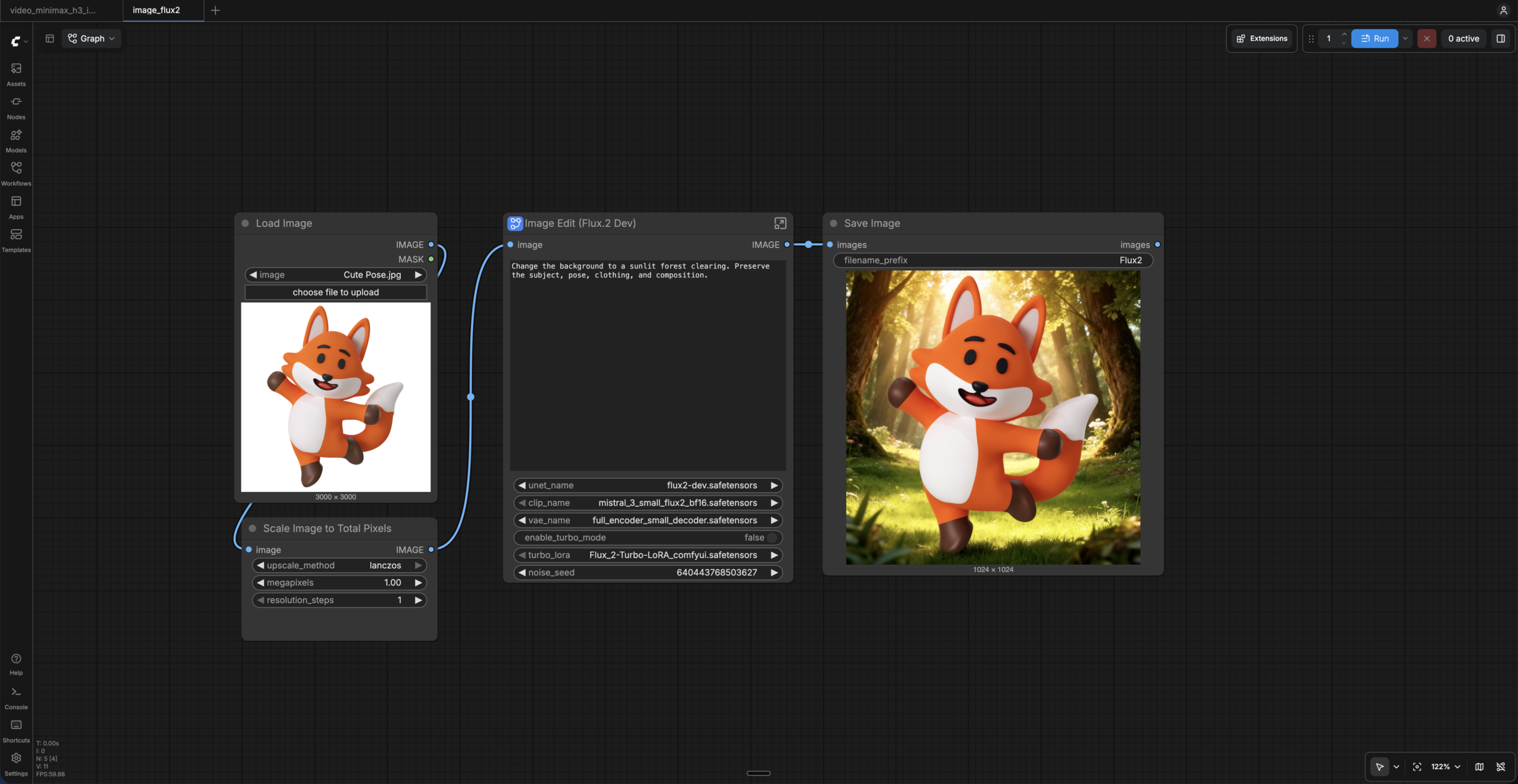
Those capabilities can support storyboarding, concept art, visual effects and other video assets. They don’t guarantee a usable result. An image still has to meet the needs of the project, and a controlled workflow takes time to build.
Cloud services like Comfy Cloud offer many of the same features, including hosted LoRA workflows. Local hardware gives users direct access to the models, nodes and generation pipeline without a per-operation charge.
Independent results are encouraging. Frandroid generated a 1024 × 1024 image using FLUX.2 Klein 4B in 16.2 seconds on RTX Spark, compared with 18.7 seconds on a laptop RTX 5070. At 2048 × 2048, Spark took 90.8 seconds versus 118.5 seconds for the RTX 5070 system.
Klein is smaller than the FLUX.2 Dev model we used, so those figures represent a different workload. Even so, they show that RTX Spark can compete for image generation.
For editors who create lots of assets or rely on customized workflows, local image generation is one of the more persuasive reasons to consider the Surface.
Generating video locally

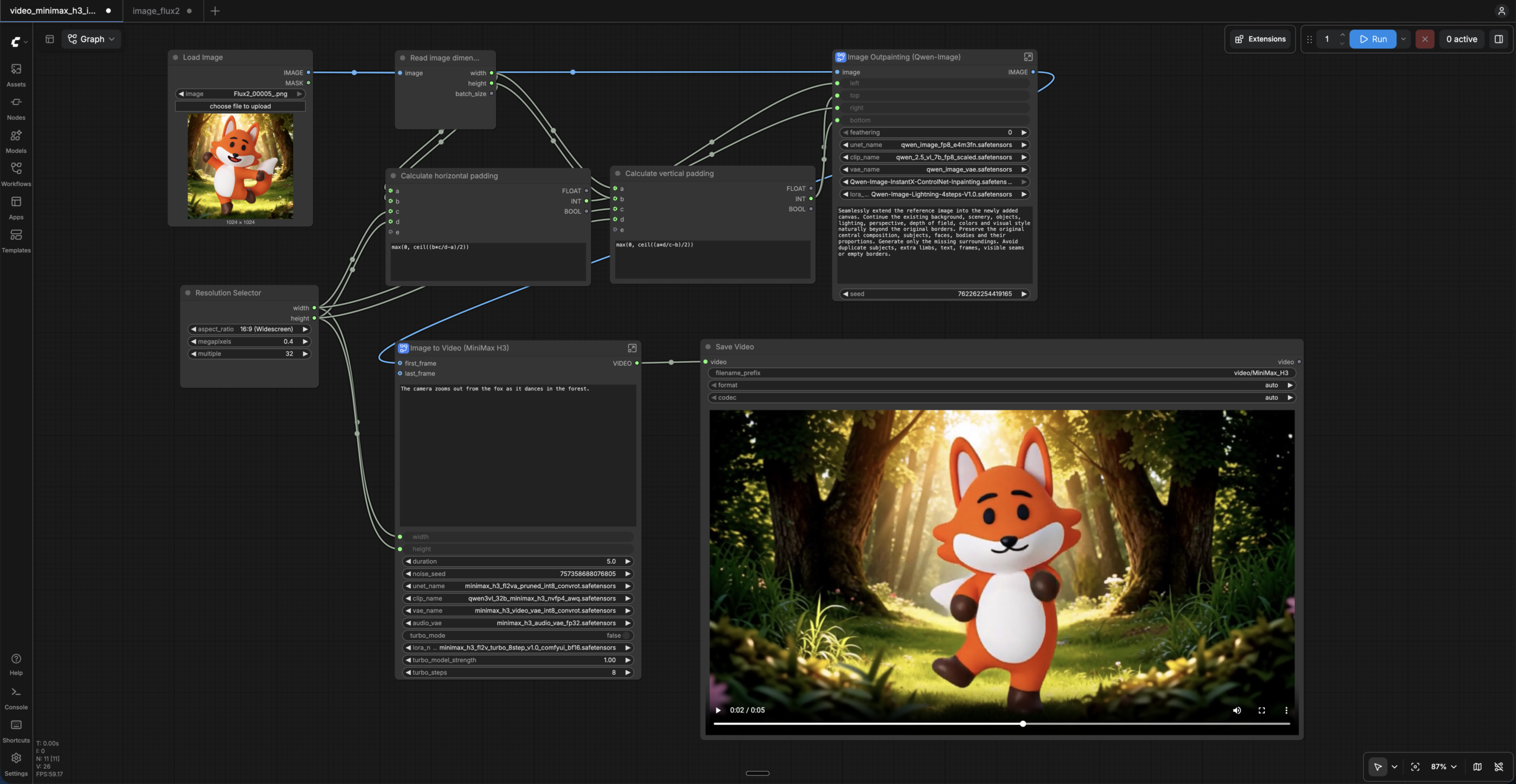
We also generated short clips with MiniMax H3, an open-weight video model. The laptop could produce footage, but processing time and the usefulness of the result both depended on what we asked it to create.
| Task | Processing time |
| Five-second video, 960 × 544 | Approximately 8 minutes |
| Five-second video, 1344 × 768 | Approximately 21 minutes |
| Upscale 1344 × 768 video to 1080p | Just over 13 minutes |
Generating a five-second clip at 1344 × 768 and upscaling it to 1080p took approximately 34 minutes.
Some footage was more useful than others. Generic landscapes, skyscapes and abstract moving patterns produced good results. Those shots could work as backgrounds, atmospheric material or elements in a motion-graphics sequence, where an editor has more flexibility in how footage gets used.
Shots of people were less convincing and looked more obviously AI-generated. That limits their usefulness when a project calls for believable human subjects or footage that has to sit naturally alongside live action. The output may still fit a stylized piece, but it isn’t interchangeable with every kind of source footage.
Time makes those differences consequential. Video generation usually involves iteration, since an editor may need several versions to get the right motion, composition, timing or subject consistency. At roughly half an hour for a higher-resolution clip and upscale, a dozen variations could eat up hours, and not every result will be usable.
The work can be queued and run unattended, though. A team that frequently needs atmospheric footage or abstract assets might find value in generating material overnight. Local workflows also offer conditioning and other controls similar to those available for image generation.
The Surface can generate useful video for some purposes. Whether that justifies the hardware depends on how often those purposes come up and how much waiting and iteration a production can absorb.
The best experience combines cloud and local AI
The setup that worked best combined cloud and local models.
ComfyUI is powerful, but building a workflow can be technical. Connecting nodes and troubleshooting can take real effort. We found frontier models like ChatGPT useful for constructing workflows and working through technical problems.
Once a workflow was configured, the Surface could generate images or video locally. A similar approach could work for footage analysis. A cloud assistant helps manage the pipeline, while local models process the media.
For editors incorporating AI into production, that division of labor may be more practical than relying exclusively on local or cloud models.
Is local AI cheaper?
NVIDIA suggests that running AI locally could save about $1,200 per month compared with cloud inference. That estimate assumed the hardware was generating tokens around the clock.
We suspect video editors are unlikely to keep their machines busy 24/7. Beyond editing, there’s footage to review, clients to talk to and creative decisions to make. Much of that work happens without AI assistance.
A more useful question is how much cloud spending the memory upgrade would need to replace. Spread over three years, the premiums for the matched-processor configurations work out as follows:
| Upgrade | Additional price | Monthly break-even savings |
| 32 GB to 64 GB | $600 | $16.67 |
| 64 GB to 128 GB | $1,600 | $44.44 |
| 32 GB to 128 GB | $2,200 | $61.11 |
These simple calculations exclude electricity, configuration time, financing and resale value.
Saving $61 per month may sound achievable, but many cloud AI workloads are inexpensive. For example, Qwen3.6-35B-A3B has been available through hosted inference providers for approximately $0.05 per million input tokens and $0.70 per million output tokens. At those rates, 50 million input tokens and five million output tokens would cost about $6.
Image generation can also be inexpensive. fal.ai lists FLUX.2 Dev at $0.012 per megapixel, or approximately $12 for a thousand one-megapixel images.
For video, MiniMax’s official API pricing lists H3 generation at $0.08 per second for 768p output. A five-second clip would cost approximately $0.40. At that rate, 5,500 clips would cost $2,200, which matches the price difference between the comparable 32 GB and 128 GB laptops.
Renting a GPU is another option. RunPod has listed an RTX A6000 with 48 GB of memory at approximately $0.59 per hour. At that rate, $2,200 would cover more than 3,700 hours.
Owning the hardware does have benefits beyond direct savings. Local processing keeps source footage inside the production environment and makes repeated experiments with models and settings easier.
Still, cloud prices make a large hardware premium hard to justify on savings alone without a substantial, established workload.
Should video editors choose 32 GB, 64 GB or 128 GB?
The right configuration depends less on whether you plan to use AI than on which models and workflows you need.
32 GB: Conventional editing and built-in AI tools
The 32 GB model is worth considering if you mainly use Premiere Pro or DaVinci Resolve. Both offer local footage search and transcription, and our small-batch tests suggest native indexing has modest GPU-memory requirements.
It also leaves room to experiment with smaller language models and suitably configured image-generation workflows. Its main limitation is capacity for larger models and simultaneous AI tasks.
64 GB: Dedicated local AI workflows
The 64 GB model offers more room for medium-sized language models and image generation. As the independent language-model benchmarks show, moving from 64 GB to 128 GB may add little speed when a model already fits comfortably.
For an editor committed to local image generation, or to a specific workload that needs more than 32 GB, 64 GB may be enough.
Video generation is harder to predict. Models and workflow settings can consume substantial memory, and offloading can hurt performance. We did not test a 64 GB Surface directly, so we can’t say how well our complete MiniMax H3 workflow would run on it.
128 GB: Larger models and simultaneous workloads
The 128 GB configuration makes the strongest case when you need larger models or several loaded at once. In our monitored Hermes run, the Qwen assistant and indexing models occupied nearly 48GiB of GPU-visible memory together.
That capacity offers flexibility for more complicated systems. Our testing did not show that 128 GB was necessary for typical editing, native footage indexing or many image-generation tasks. The premium pays off only for a specific workload that requires it.
Final thoughts
The Surface Laptop Ultra is an impressive computer. Its RTX Spark processor provides substantial AI computing power, and its unified memory lets it accommodate models that exceed the capacity of many conventional laptops.
We put that capability to work. We indexed footage, generated searchable metadata, created images and video clips, and used a local agent to run an established indexing workflow without intervention. Editors who want to build custom production systems have plenty to explore.
The limitations matter too. Frontier cloud models were more capable than the local models we tested at interacting with applications and handling complicated autonomous tasks. Premiere and Resolve already provide useful local footage analysis. Our custom indexer produced more portable, detailed metadata, but it didn’t need 128 GB.
Image generation was one of the more promising applications. The Surface generated images quickly, and open-weight workflows offered creative control. Video generation produced good landscapes, skyscapes and abstract patterns, but shots of people were less convincing. Long processing times make iteration another factor to weigh.
The economics are challenging. Cloud inference, hosted generation and GPU rental can be cheap enough that occasional users, and even some heavy users, may struggle to recover the memory premium.
For an editor with an established workflow that needs large models or sustained local processing, the 128 GB Surface Laptop Ultra could be a valuable tool. For someone hoping a powerful AI laptop will transform their workflow, the 64 GB model is probably enough.
Try the AI features already in Premiere or Resolve. Experiment with hosted image and video generation. If you want more control, explore ComfyUI on a rented GPU. Those experiences should help you decide whether dedicated hardware would improve your work and how much memory you need.

Strengths and weaknesses
| Strengths | Weaknesses |
| Generates images quickly enough for an iterative creative process | Cloud models handled computer-use tasks more reliably |
| Runs large local language models with room to spare | A higher-resolution AI video clip takes roughly half an hour to generate and upscale |
| Its hardware encoder exported a 4K sequence in about 9.6 seconds | The 128 GB premium is hard to justify for occasional users |
| The structured local footage index works with other AI tools | AV1 software encoding trails competing x64 systems |
| Performance held steady under sustained load | Premiere and Resolve already cover much of the basic footage search |
Tech specs
| Specification | Details |
| Manufacturer | Microsoft |
| Product | Surface Laptop Ultra (15-inch) |
| Processor | NVIDIA RTX Spark N1X, 20-core Arm CPU (review unit) |
| GPU | NVIDIA Blackwell RTX, 6,144 CUDA cores (review unit) |
| Memory | 128 GB LPDDR5X unified memory (review unit) |
| Storage | 1TB SSD (review unit) |
| Display | 15-inch PixelSense touchscreen, 3270 × 2180, 120Hz, up to 2,000 nits |
| Battery | 92Wh, rated for all-day battery life |
| Charging | 140W USB-C power adapter |
| Ports | 3 × USB-C (40 Gbps), 1 × USB-A, HDMI 2.1b, SD card reader, 3.5mm headphone/mic combo |
| Wireless | Wi-Fi 7, Bluetooth 5.4 |
| Webcam | 1080p |
| Operating system | Windows 11 Pro on Arm |
| Dimensions | 328.8 × 238.7 × 19.16 mm (12.95 × 9.40 × 0.75 in) |
| Weight | 2.0 kg (4.41 lb) |
| Colors | Platinum, Nightfall |


