

Geotagging attaches a location to your video, usually as latitude and longitude, and sometimes as the time and altitude where it was shot. Tagged footage can be sorted on a map, traced back to a shoot, or used to document where a scene happened. The same data can also reveal where you live, so it is worth knowing how it works before you post anything.
How location data is stored
Location data lives in the file’s metadata, not in the picture itself. In MP4 and MOV files, the location is stored in a metadata box that travels with the file. Apple devices store it in a location field in the file’s metadata. Android phones often store it in a different tag called ©xyz. The exact tag depends on the device, but in both cases the coordinates are part of the file, so a file shared on its own can still carry them.
Dedicated cameras can also record location. Some have a built-in GPS receiver, while others accept an external GPS unit or take location data from a paired phone. Check your camera’s manual to see how it stores coordinates, and whether the data is written to the video file or to a separate log.
Recording location on your phone
Most phones can record location automatically, but the setting may be off by default or hidden in a menu. On an iPhone, go to Settings, then Privacy & Security, then Location Services, then Camera, and choose While Using the App. On Android, open the camera app’s settings and look for a location option. The name varies by brand, such as Save location, Location tags, Geo-tag photos, or Tag locations. Android also has a camera permission under Settings, then Apps, then Camera, then Permissions, then Location. Menu names change between models and software versions, so check your phone’s current settings before you shoot something important.
Recording location is only half of the process. Test your workflow before a real shoot. Record a short clip, send it the way you normally would, and confirm whether the location survives the transfer. In one 2025–2026 test, a video uploaded through a browser on an iPhone arrived without GPS data, while the same clip sent by AirDrop kept it. Results vary by app and iOS version, so test your own route.
Adding a geotag after you shoot
If your camera did not record location, you can add it later. ExifTool, a free command-line tool, can write GPS information to MP4 and MOV files as XMP metadata. FFmpeg can also set a location while it re-encodes a file, using the location metadata field. Both methods change the file’s metadata, so keep an untouched original copy before you experiment.
Be careful with the coordinates you add. If you add the wrong location, the tag will still travel with the file. Double-check the latitude and longitude against a map before you export or publish the clip.
Using geotags in your work
Geotags are most useful when they are connected to a map. A location plotted on a map gives viewers context, and it helps you organize a large library of footage by where it was shot. For a documentary or travel project, a map of your shooting locations can also help viewers follow the story.
Keep the map simple, and add location labels only where they help the audience understand the footage. Too many pins make a map hard to read, so group nearby clips under one label when the places are close together.
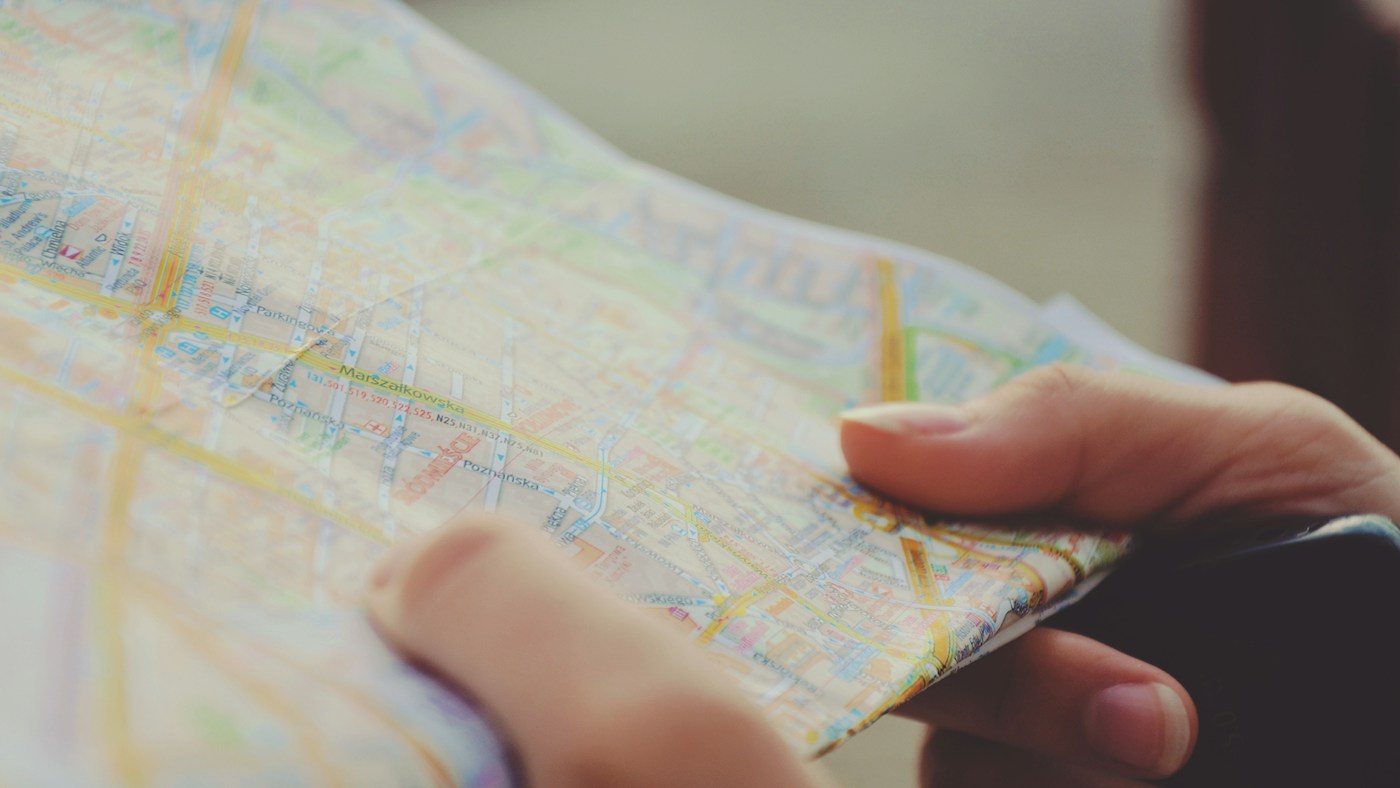
Photo: Sylwia Bartyzel / Unsplash

Tags on platforms are not the same as file data
Social platforms handle location in two ways. One is the file’s embedded metadata, which travels with the video. The other is a location tag, which the platform displays on the post. Changing one does not always change the other, so check both.
Instagram lets you add a location to a post or Reel from the caption screen, using the Add location option. Instagram’s help center also describes how to add or edit a location on a post after it has been shared. A location tag tells viewers where a post was made, but it is separate from the GPS data inside the file, so removing the tag does not remove embedded metadata.
TikTok lets you add a location before you publish, from the final screen where you write your caption. Sources disagree on whether you can change a location after a video is posted, so do not depend on editing it later. Set the location carefully before you post.
YouTube lets you tag a location in YouTube Studio. Open the video, click Show more, find Recording date and location, and choose a Video location. This is a visible tag on the video, so it is the same kind of decision as a location on any other post.
Protect your privacy before you post
Location data can reveal where you live, work, or travel, which is why many people remove it before sharing a clip. On an iPhone, you can turn off location for a single share. Open Photos, select the item, tap Share, tap Options, turn off Location, and tap Done. This change applies only to that share, and the original file in your library keeps its location. Apple’s Personal Safety guide describes the same steps.
For video files, you can strip metadata with FFmpeg using a command such as ffmpeg -i input.mp4 -map_metadata -1 -c copy output.mp4. This copies the video and audio without the metadata. Many desktop editors and free utilities can also remove location data during export.
Photo services handle location differently. In Google Photos, you can add a location, or edit or remove an estimated location, but you cannot change a location that the camera recorded. Google Photos also does not share estimated locations, even when you choose to share location details. A file you download and send outside Google Photos keeps whatever location the camera saved, so remove it from the file before you upload.
Checklist
Before you post a geotagged clip, confirm that the location is correct and that you want it public. Check whether your phone or camera saves location by default. Test your transfer method, and keep an original copy of every file. Check the location tag on the platform separately from the file metadata. If the clip is personal, strip the location before sharing it.


